Installation
Install Fire VT on a Firestick
For compatible Fire TV devices running Fire OS. Android APK instructions do not apply to Vega devices.
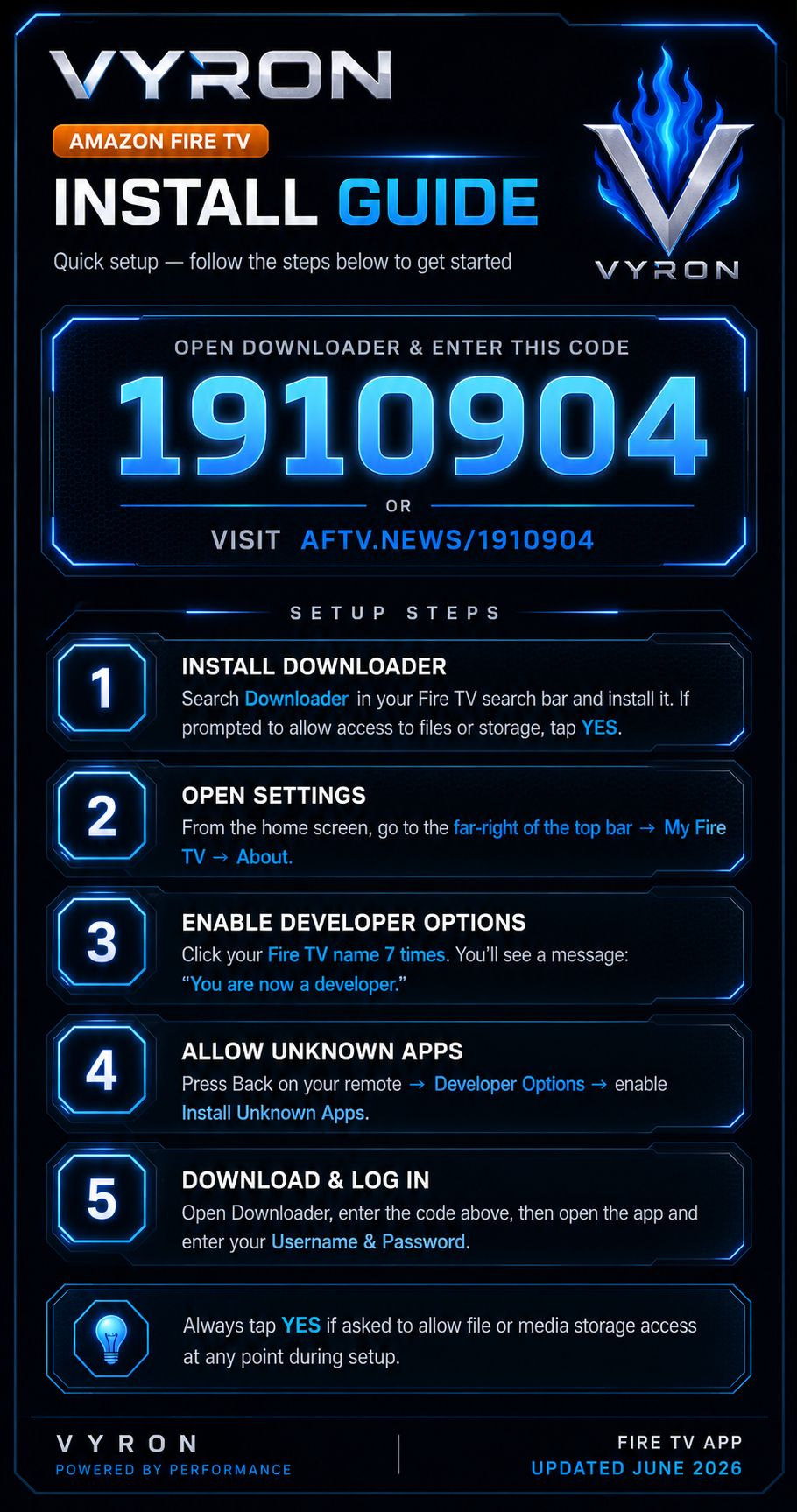
- From the Fire TV home screen, search for Downloader and install the app from the Amazon Appstore.
- Open Settings → My Fire TV → About. If Developer Options is hidden, select your device name seven times, then go back. Menu labels vary by model; some models do not support these options.
- Open Developer Options → Install Unknown Apps and enable Downloader. Older compatible models may show Apps from Unknown Sources. If you cannot find a supported installation option, contact Davie with your device model.
- Open Downloader. Allow the file access it needs when prompted, then enter code 1910904. The supplied short URL is aftv.news/1910904. Check with Davie if the code changes or the download is unavailable.
- Let the APK finish downloading, choose Install, then Open. If Android asks which app can install packages, allow only Downloader as needed.
- Log in using your Fire VT username and password supplied for your account.
- If Fire VT requests media access for its menus, allow the relevant media permission. See the missing menus guide if needed.
- Once installation works, delete the downloaded APK through Downloader → Files to recover space. You can switch off Downloader’s install permission after installation.
Original poster
Older poster reference. Follow the written steps above if the wording or menu names differ.
Still need a hand?
Send Davie your device model, the exact error and the steps you have tried.
Message Davie on Telegram